
Deposit a check in a few steps.
Skip the branch visit. Use the FireFirstCU mobile app to deposit a check from your phone in minutes. Here is how to do it and how to endorse your check correctly before you start.
How to deposit a check.
- Log in to the FireFirstCU mobile app.
- Select Check Deposit from the bottom navigation.
- Choose the account and enter the amount of the check.
- Follow the onscreen prompts to photograph the front and back of your check.
- When your check images are accepted, thumbnails will appear on your screen.
- Confirm the account, amount and images are correct, then select Deposit.
- A confirmation checkmark will appear onscreen and you will receive an email confirming your deposit.
How to endorse your check for mobile deposit.
Before photographing your check, sign the back and write “For Mobile Deposit” below your signature. This is required for all remote deposits. For business endorsements, all checks must be signed or stamped with the business name.
How you endorse a check with multiple payees depends on how the names are joined.
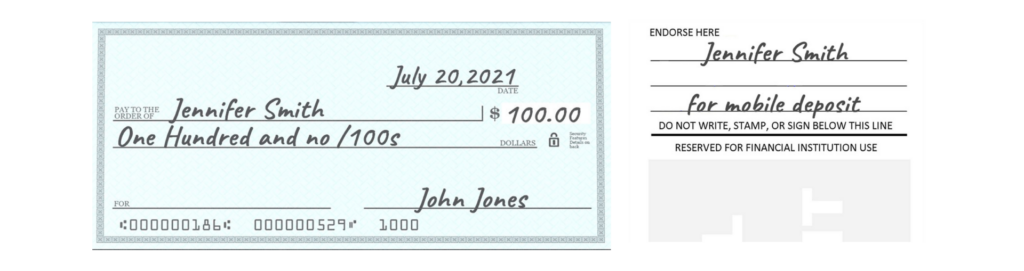
One payee
Sign the back of the check. No additional information required beyond your signature and “For Mobile Deposit.“
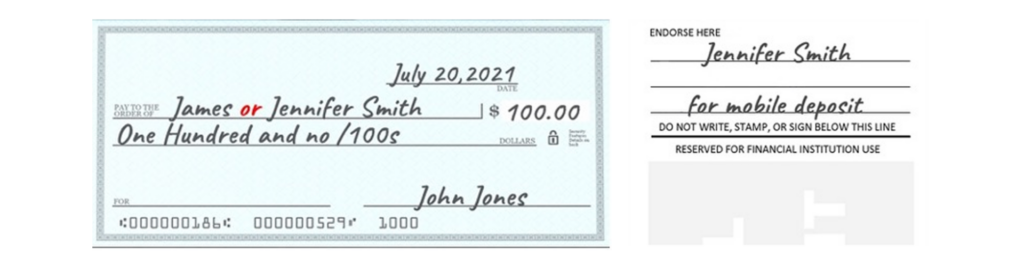
Two payees joined by “or”
Only one payee needs to sign. Either party can endorse and deposit the check.
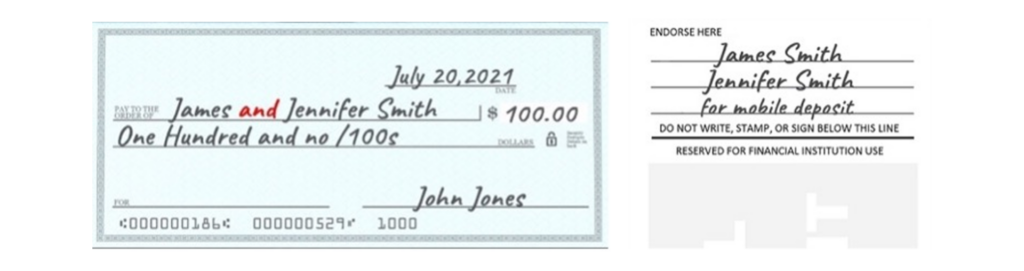
Two payees joined by “and” or “&”
Both payees must sign before the check can be deposited.
Questions?
If you have any questions, please contact us or call us at 800.231.1626.